
You can automatically share every new YouTube video to Facebook, X, LinkedIn, Threads, Bluesky, Mastodon and more by connecting YouTube to Social Post Flow with Zapier. When you publish a video, Zapier sends it to Social Post Flow, which posts it to your social media profiles straight away or adds it to your posting queue.
Setup takes about 10 minutes and doesn’t need any code.
What you’ll need
- A YouTube channel.
- A Social Post Flow account with your social media profiles connected. Start a free trial if you don’t have one.
- A Zapier account. The free plan works; it checks for new videos every 15 minutes.
Step 1: Connect your social media profiles
- Log in to Social Post Flow.
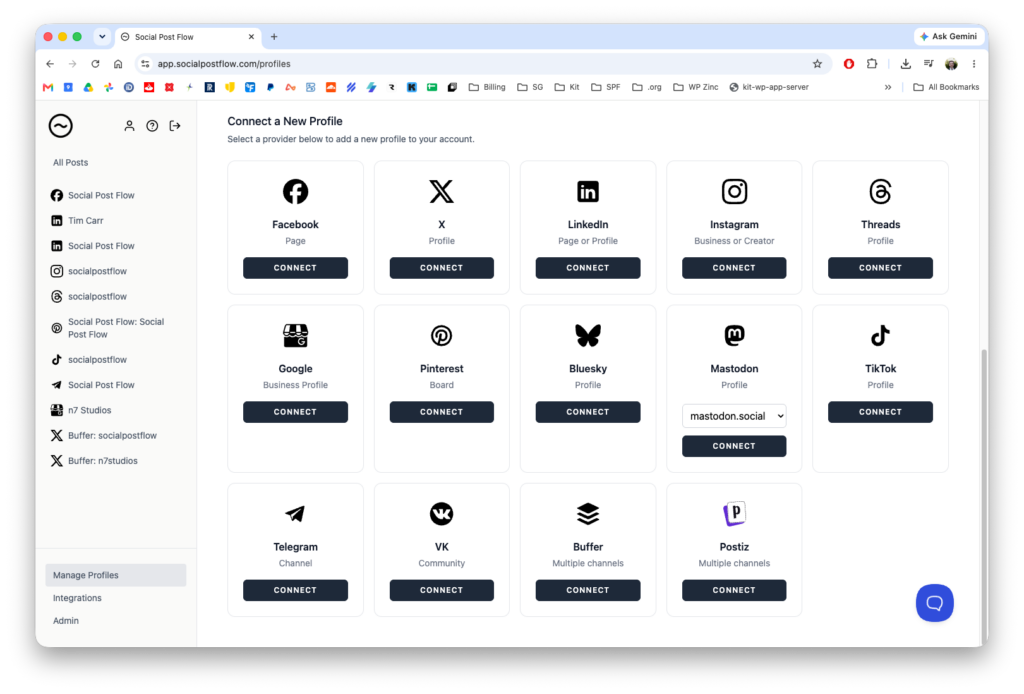
- Click Manage Profiles.
- Under Connect a New Profile, click Connect for each network you want to share your videos to, and follow the steps to sign in.
Your connected profiles are listed in the sidebar.
Step 2: Create a new Zap
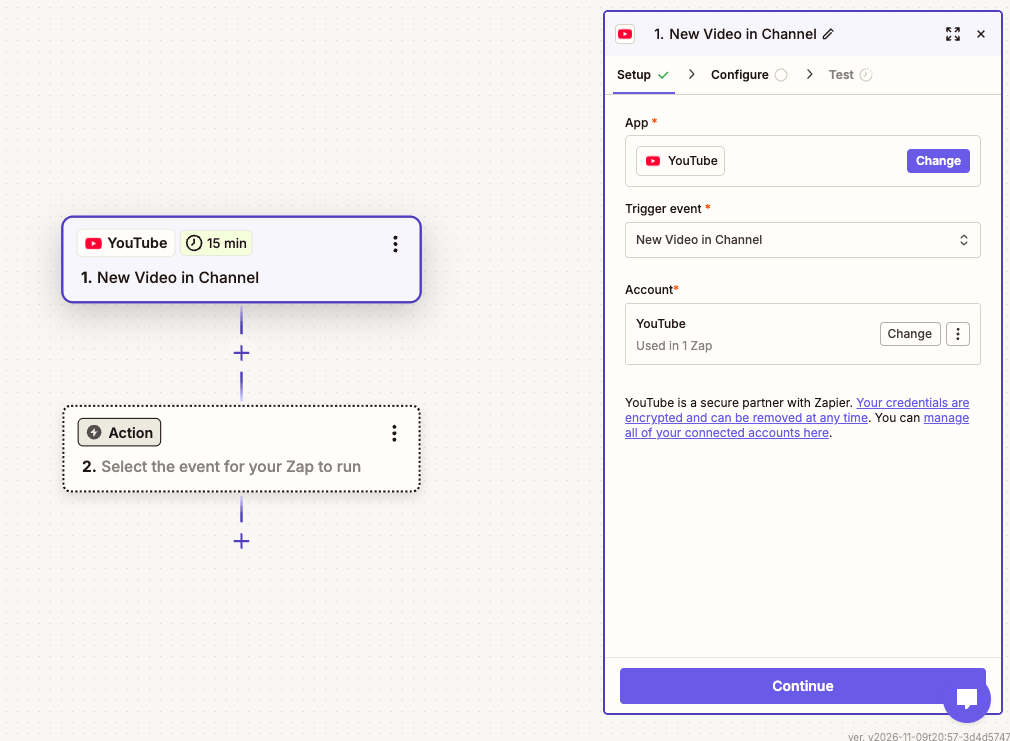
- Log in to Zapier and click Create > Zaps.
- Click the Trigger step and search for YouTube.
- For Trigger event, choose New Video in Channel.
- For Account, click Sign in and connect the Google account that manages your YouTube channel.
- Click Continue.
Step 3: Choose your YouTube channel
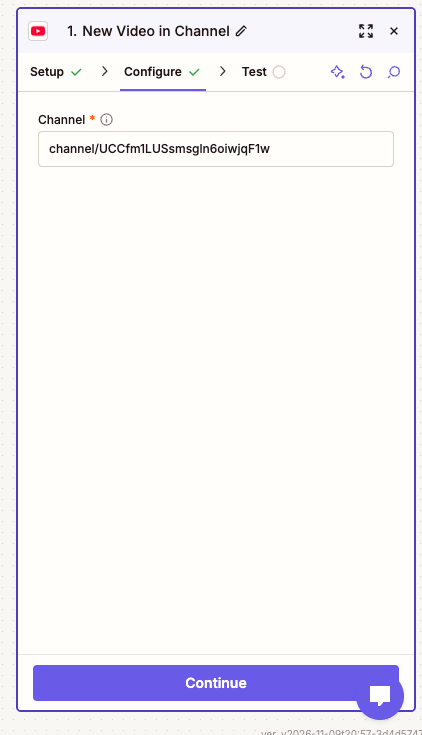
- For Channel, enter your channel ID.
- Click Continue.
Step 4: Test the trigger
- Click Test trigger. Zapier looks for recent videos on your channel.
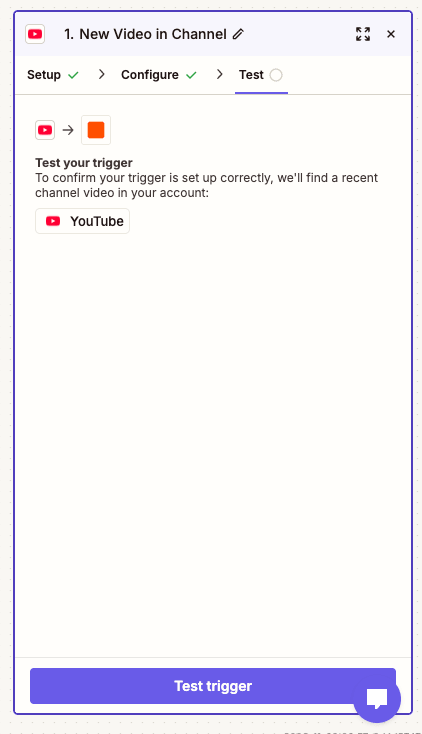
- Zapier shows up to 3 of your most recent videos. Choose one; it’s used as an example to set up the next step.
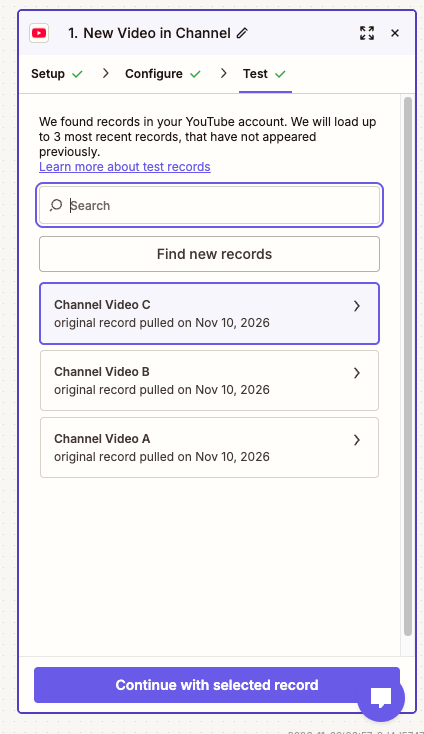
- Click Continue with selected record.
Step 5: Add Social Post Flow as the action
- Click the Action step and search for Social Post Flow.
- For Action event, choose Publish Link Post.
- For Account, click Sign in. Log in to Social Post Flow if asked, then click Authorize to allow Zapier access.
- Click Continue.
[screenshot]
Step 6: Set up the post
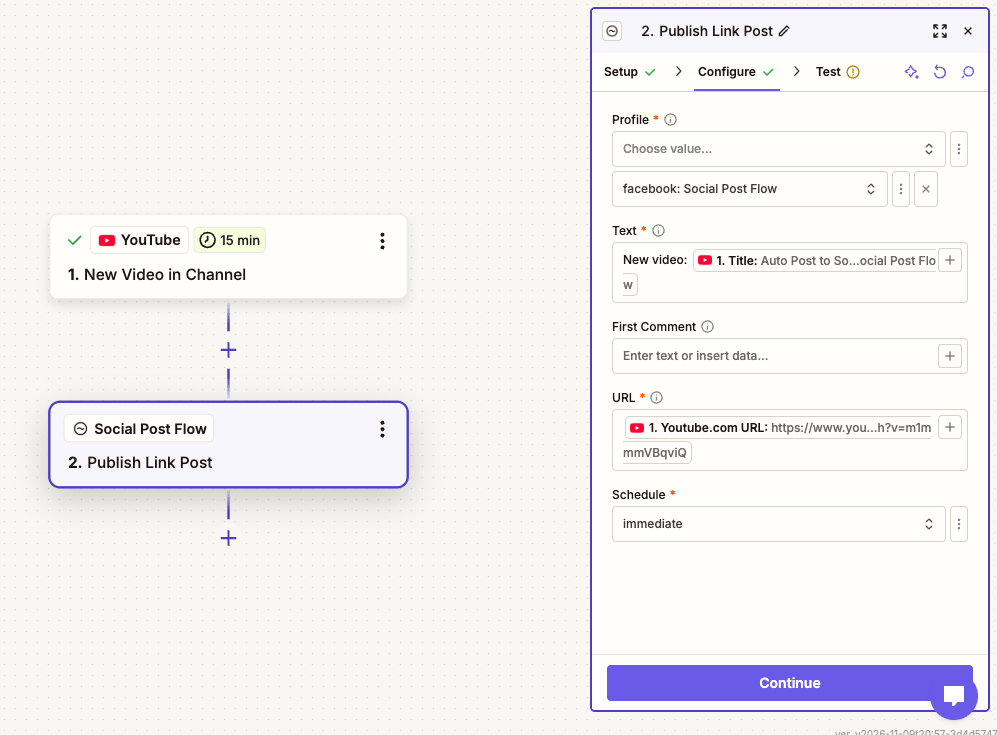
Fill in each field. To insert details from your video, click into a field and choose them from the YouTube step.
- Profile: the profile to post to. Click + to add more profiles.
- Text: what the post says. Type your own text and insert the video’s Title, e.g.
New video: [Title]. - First Comment (optional): hashtags, or a link to your channel.
- URL: insert the video’s Youtube.com URL. Most networks show this as a preview card with your video’s thumbnail.
- Schedule: choose immediate to share as soon as Zapier finds a new video, or add it to your queue to spread posts out.
Click Continue.
Step 7: Test the action
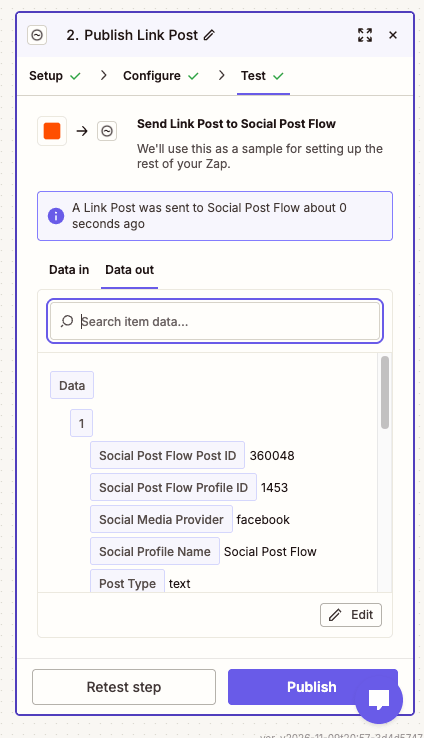
- Click Test step. This sends a real post to Social Post Flow, using the video you chose in Step 4.
- Zapier confirms the post was sent, and shows its details under Data out.
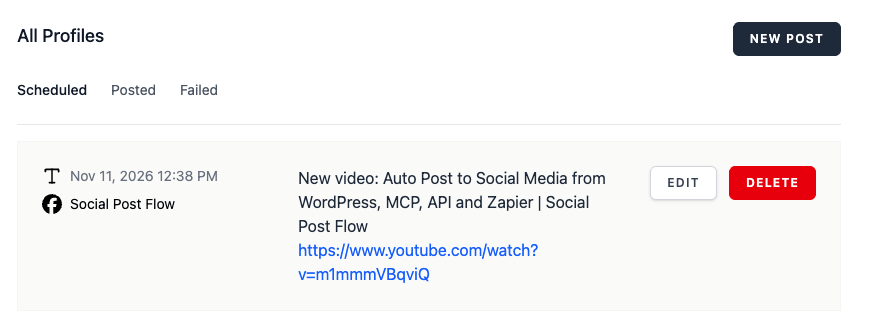
- In Social Post Flow, click All Posts to see the post. Edit or delete it if you don’t want it published.
Step 8: Publish your Zap
In Zapier, click Publish. From now on, every new video on your channel is shared to your selected profiles automatically.
Sharing to Instagram and Pinterest
Instagram and Pinterest don’t support link posts, so they need an image. Add a second Social Post Flow action to the same Zap:
- Instagram: use Publish Image / Carousel Post, with the video’s thumbnail as the image. If the YouTube step doesn’t show a thumbnail field, build the URL from the video’s ID:
https://i.ytimg.com/vi/VIDEO_ID/maxresdefault.jpg. Put the video’s title in the caption, and the link in the First Comment, since Instagram captions can’t contain clickable links. - Pinterest: use Publish Pinterest Pin, with the thumbnail as the image and the video URL as the link.
Alternative: use your channel’s RSS feed
Every YouTube channel has an RSS feed, which you can use instead of connecting your Google account to Zapier:
- Find your Channel ID. In YouTube, go to Settings > Advanced settings. It starts with
UC. - Your feed URL is
https://www.youtube.com/feeds/videos.xml?channel_id=YOUR_CHANNEL_ID. - In Zapier, use RSS by Zapier > New Item in Feed as the trigger, with that feed URL.
- Continue from Step 5 above, inserting the feed item’s Title and Link.
This also works for someone else’s channel, as long as you have permission to share their videos.
Tips
- Write for each network. Add one Social Post Flow action per network to tailor the text, e.g. shorter on X and more detail on LinkedIn.
- Use your queue. If you upload several videos at once, choosing your queue instead of Post Immediately stops your profiles from being flooded.
- Share from WordPress too. If you also embed your videos in blog posts, the Social Post Flow WordPress plugin shares each post when it’s published, with no Zapier needed.
Frequently asked questions
How long after uploading does my video get shared?
Zapier checks for new videos on a schedule: every 15 minutes on the free plan, and more often on paid plans. Once it finds a video, Social Post Flow posts it straight away or adds it to your queue, depending on the Schedule you chose.
Can I share my videos to TikTok or Instagram Reels?
Not from a YouTube link. TikTok and Reels need the video file itself, and YouTube doesn’t provide one through Zapier. You can share a thumbnail image post to Instagram instead, as shown above.
Will my old videos be shared?
No. Only videos published after you turn on the Zap are shared.
Do I need a paid Zapier plan?
No. This Zap has two steps, which works on Zapier’s free plan. Adding extra actions for Instagram or Pinterest makes it a multi-step Zap, which may need a paid plan.
Can I use Make, Pabbly Connect or n8n instead of Zapier?
Yes. Use their YouTube or RSS trigger, then call the Social Post Flow API to create the post.