
To connect your social media profiles to Social Post Flow, navigate to the Manage Profiles screen by clicking Manage Profiles in the bottom left hand menu:
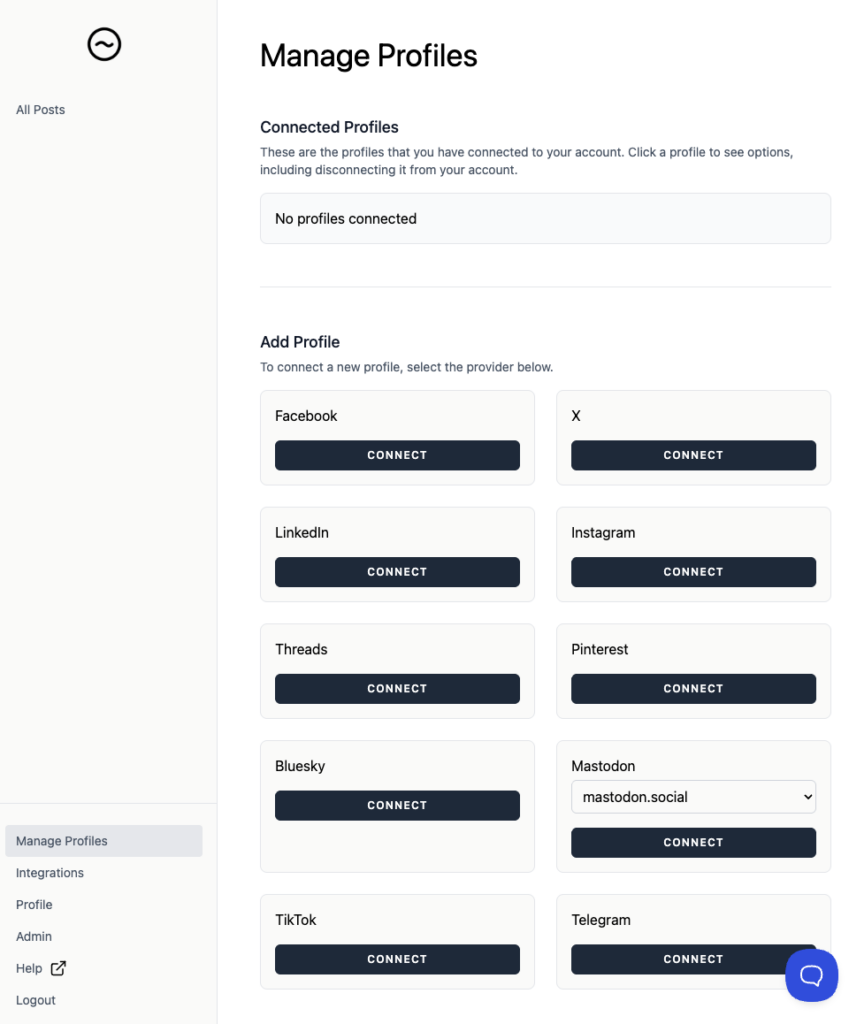
You’ll see options to connect your social profiles for the applicable social networks.
Click the Connect button for the network in question.
Click the Connect button for the Facebook section on the Manage Profiles screen.
Login to the Facebook account
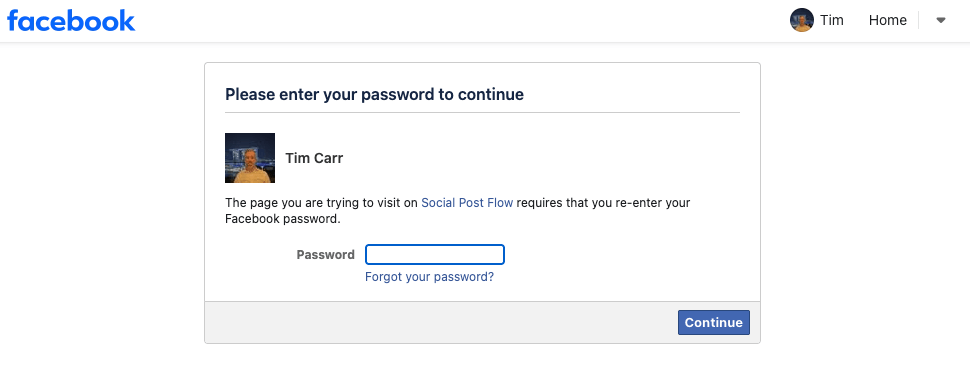
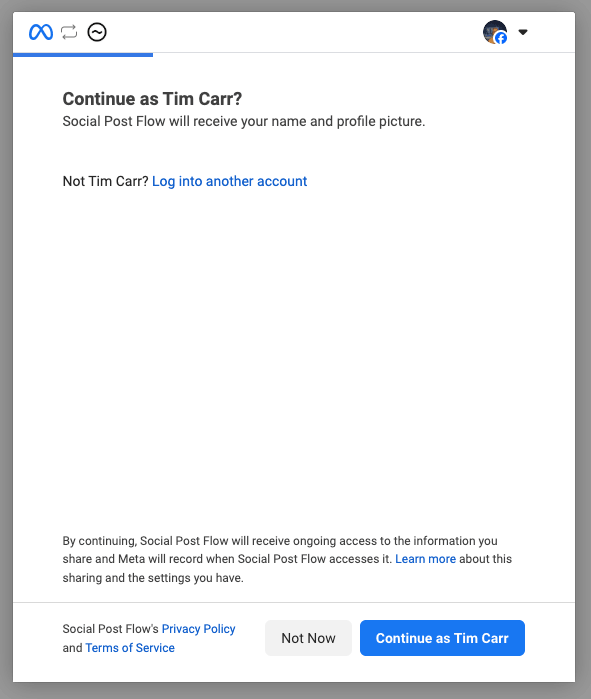
Confirm you’re logged in to the correct account that has access to the Facebook Page(s) you wish to connect to Social Post Flow.
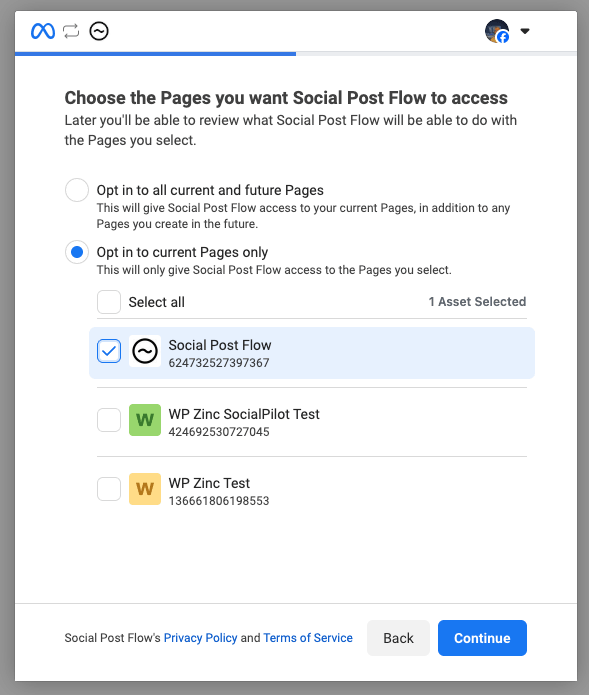
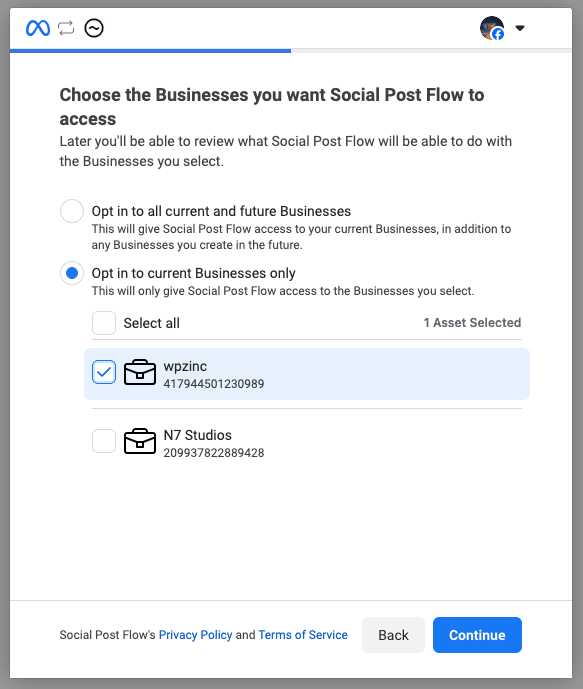
Next, select the Facebook Pages to use. It’s recommended to choose the Opt in to current Pages only, and select the specific Pages.
If any Facebook Pages above are connected to a Business, you’ll also need to opt in to those businesses. This is so we can display the Page’s name and post to it.
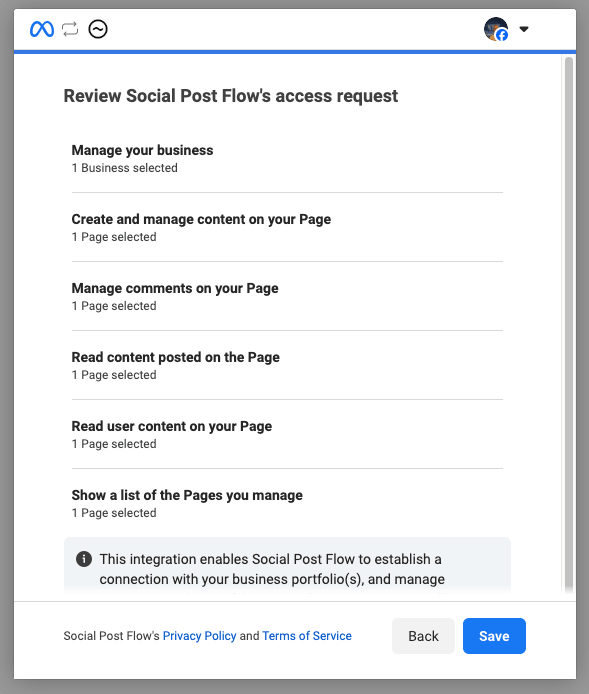
Facebook will display a review of the selections made. Double check you’re happy with them and click Save
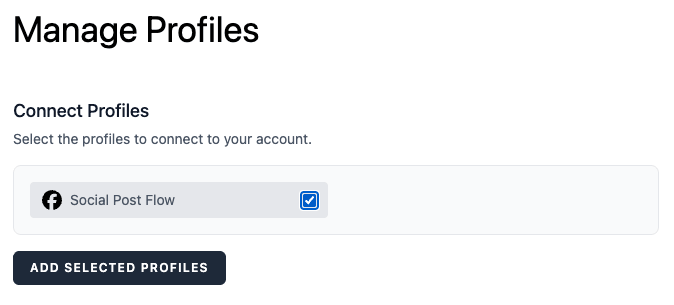
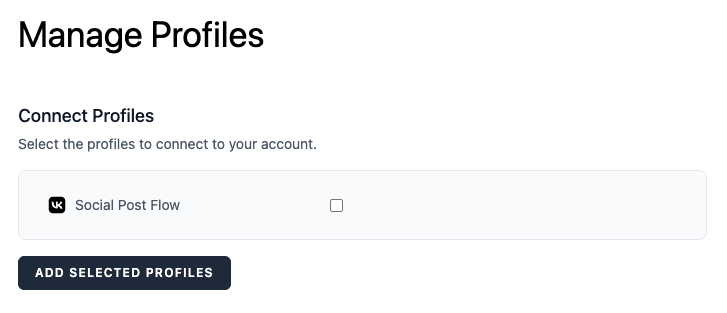
You’ll be redirected back to Social Post Flow, where you can confirm the Facebook Pages you wish to connect by ticking the checkboxes and clicking Add Selected Profiles
X

Make sure you are logged in to the correct X account at X.com before beginning this process.
Click the Connect button for the X section on the Manage Profiles screen.
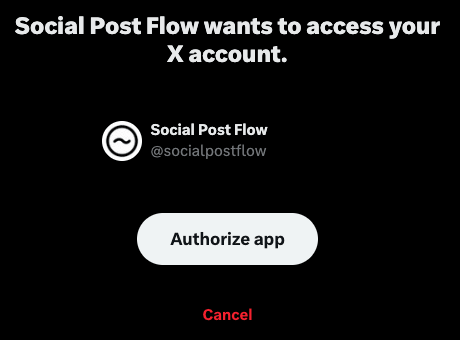
Click Authorize app on the screen that appears
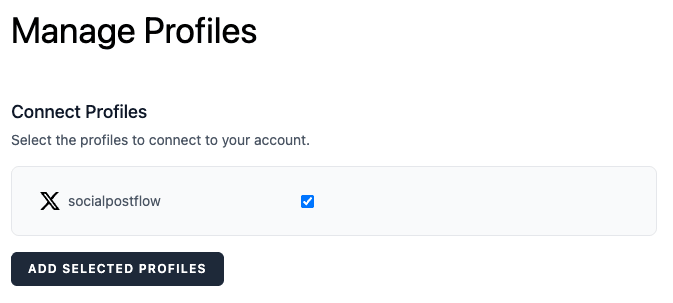
You’ll be redirected back to Social Post Flow, where you can confirm the X account you wish to connect by ticking the checkbox and clicking Add Selected Profiles
Click the Connect button for the LinkedIn section on the Manage Profiles screen.
Login to the LinkedIn account.
If you want to connect LinkedIn Pages, make sure the LinkedIn account you’re logging in as has the admin role for the LinkedIn Pages.
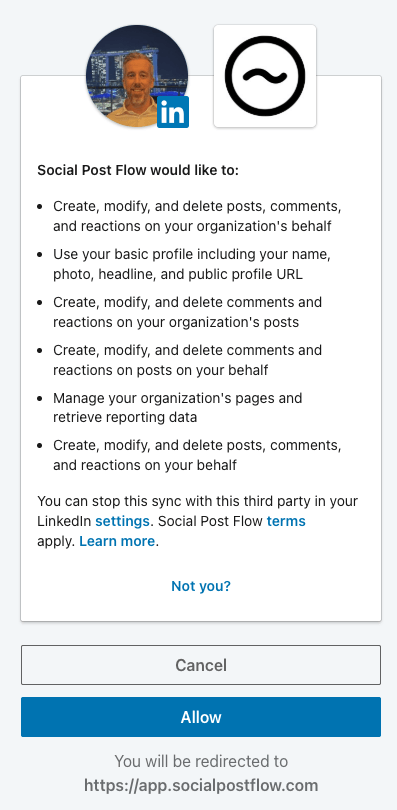
Click Allow on the screen that appears
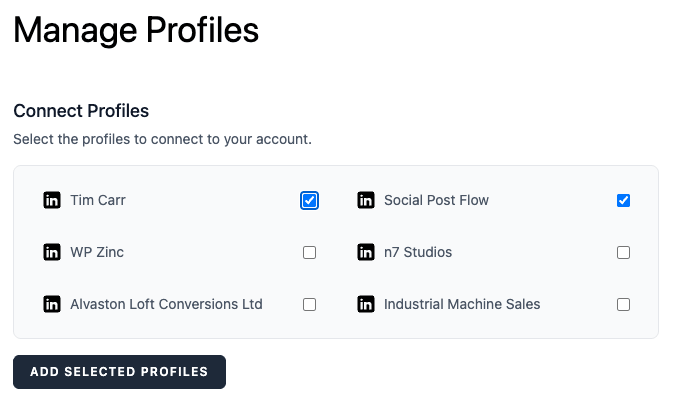
You’ll be redirected back to Social Post Flow, where you can confirm the LinkedIn Profile and/or Pages you wish to connect by ticking the checkboxes and clicking Add Selected Profiles
Make sure you are logged in to the correct Instagram account at instagram.com before beginning this process.
Click the Connect button for the Instagram section on the Manage Profiles screen.
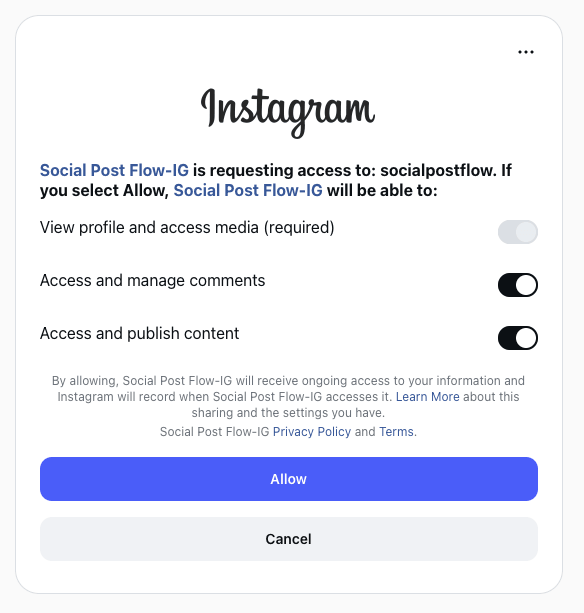
Click Allow on the screen that appears
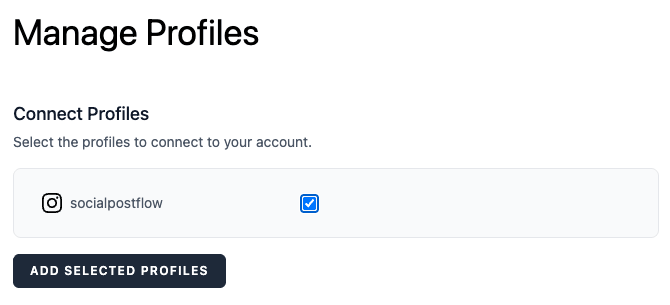
You’ll be redirected back to Social Post Flow, where you can confirm the Instagram account you wish to connect by ticking the checkbox and clicking Add Selected Profiles
Threads
Make sure you are logged in to the correct Threads account at threads.com before beginning this process.
Click the Connect button for the Threads section on the Manage Profiles screen.
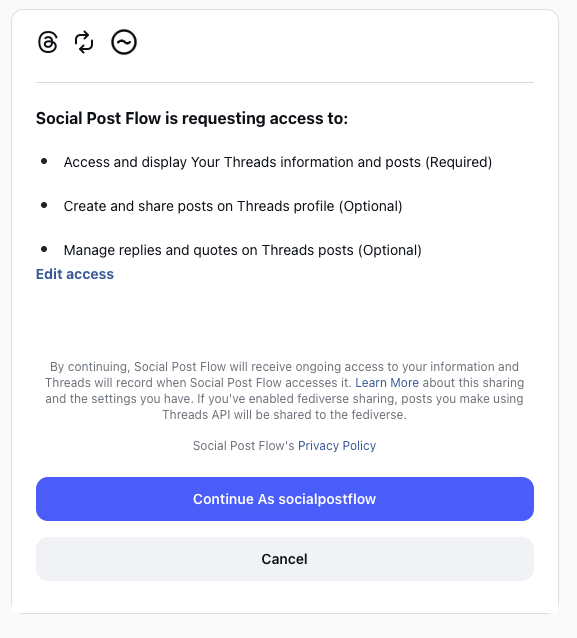
Click Continue As on the screen that appears
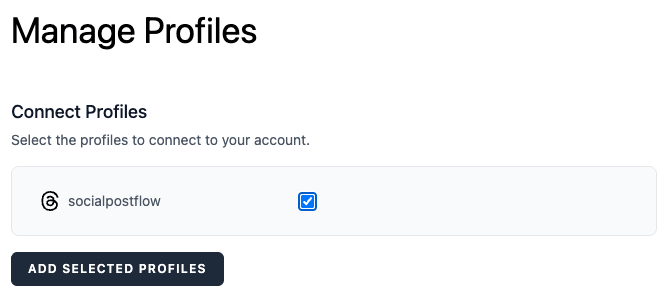
You’ll be redirected back to Social Post Flow, where you can confirm the Threads account you wish to connect by ticking the checkbox and clicking Add Selected Profiles
Google Business Profiles
Click the Connect button for the Google section on the Manage Profiles screen.
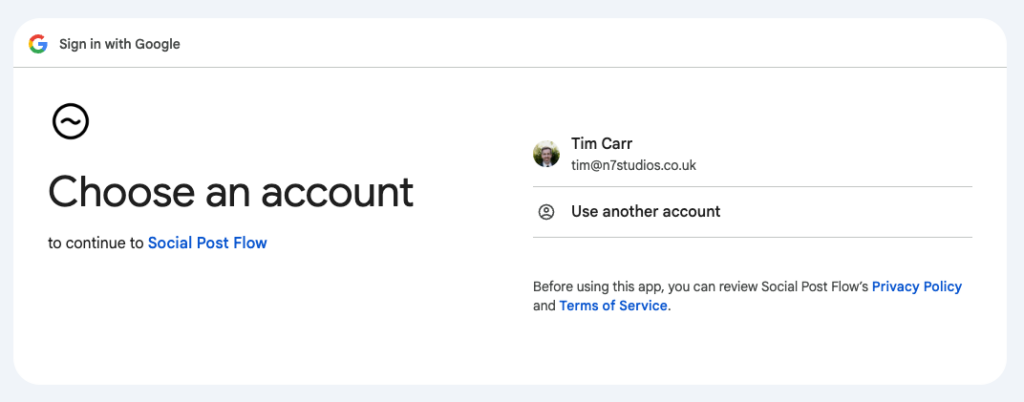
Select the Google account to sign in as. This account must have access to the Google Business Profile account(s) you want to connect to Social Post Flow.
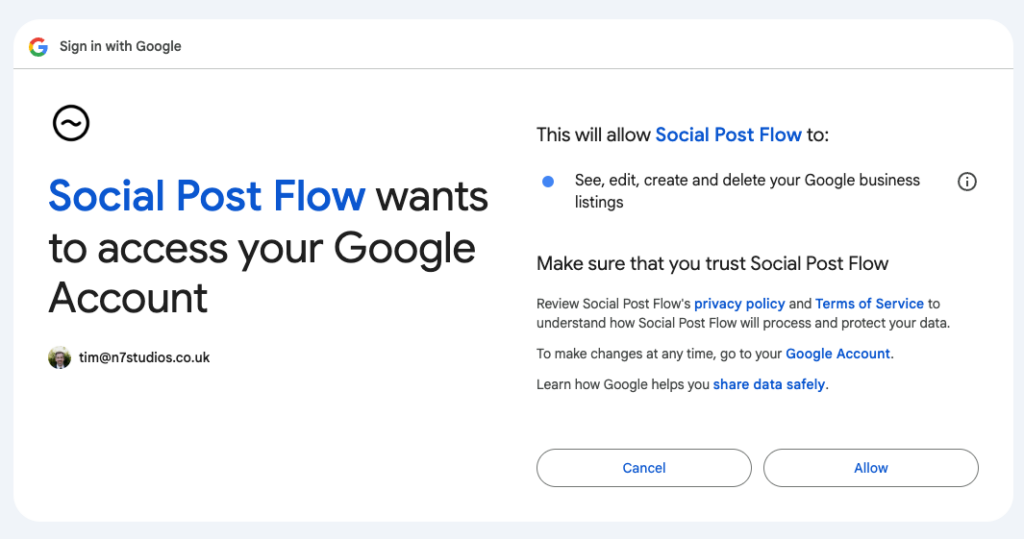
Click Allow to permit Social Post Flow to create posts.
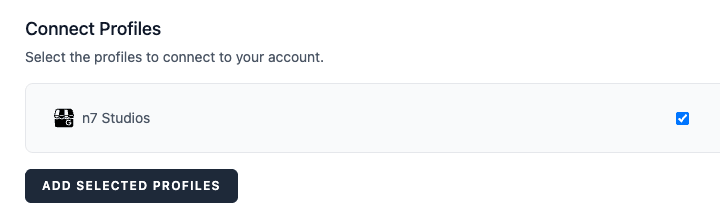
You’ll be redirected back to Social Post Flow, where you can confirm the Google Business Profile(s) you wish to connect by ticking the checkboxes and clicking Add Selected Profiles
Click the Connect button for the Pinterest section on the Manage Profiles screen.
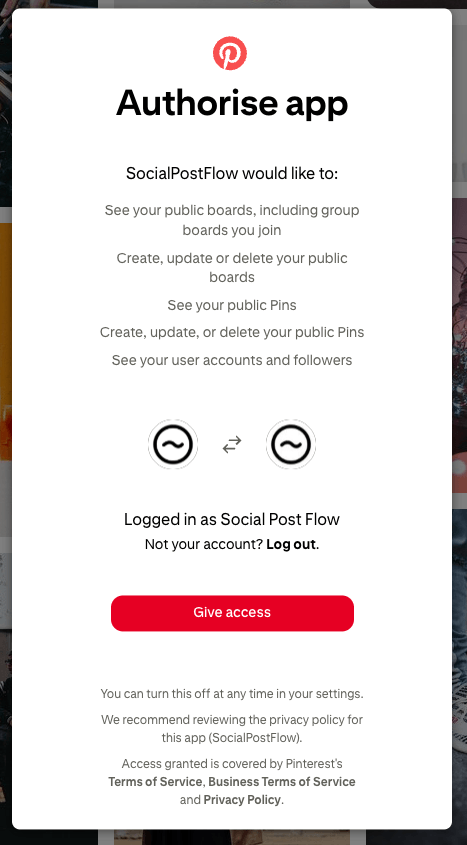
Click Give Access on the screen that appears
You’ll be redirected back to Social Post Flow, where you can confirm the Pinterest boards you wish to connect by ticking the checkbox and clicking Add Selected Profiles
We count all Pinterest boards connected as one connection / slot in your plan – so if you’re connecting 5 boards, you’ll only use 1 of your profile slots.
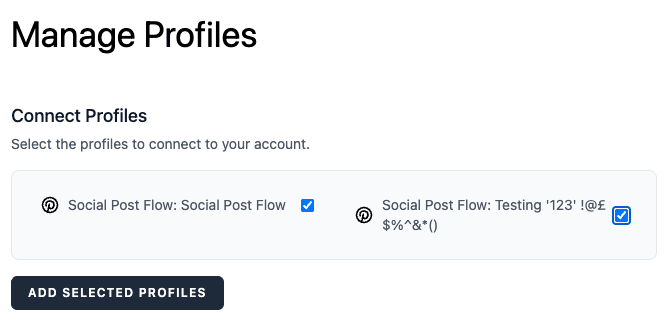
Bluesky
In Bluesky, login to the Bluesky account you wish to connect to Social Post Flow, and then navigate to https://bsky.app/settings/app-passwords
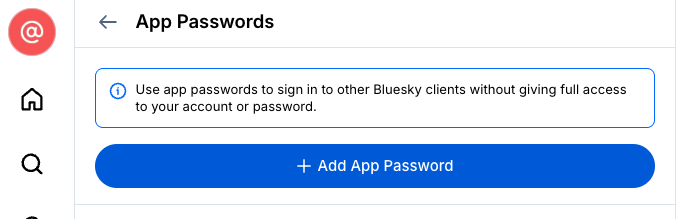
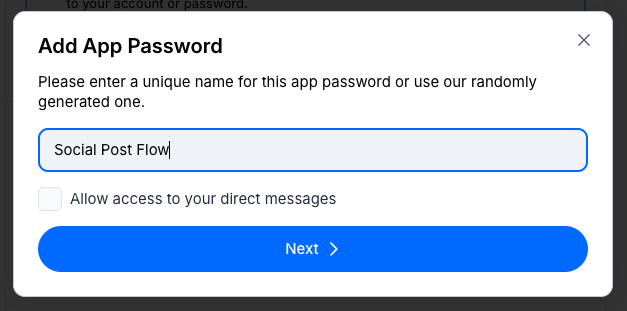
Click Add App Password, and enter a unique name (we’d recommend Social Post Flow, so you know what the password relates to):
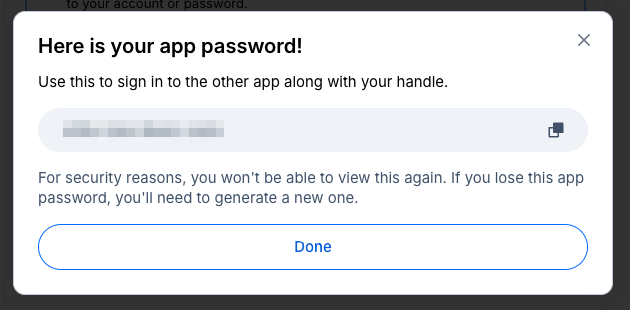
Click Next, and copy the app password displayed on screen
In Social Post Flow, click the Connect button for the Bluesky section on the Manage Profiles screen.
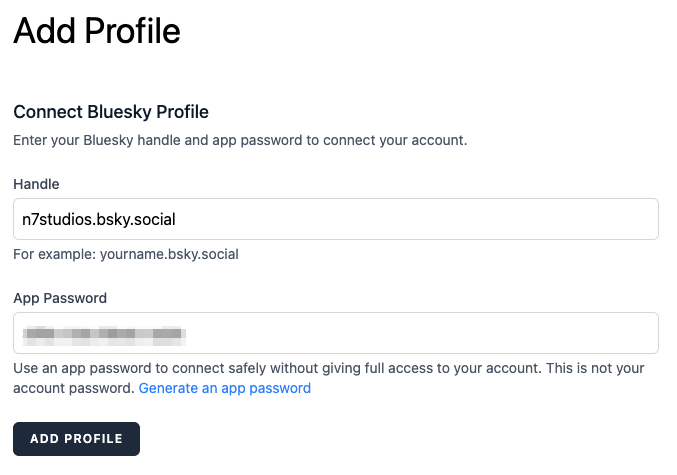
Enter your Bluesky handle and app password from above, and click Add Profile
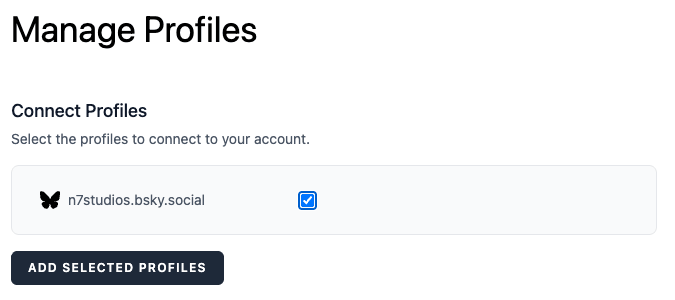
You’ll be redirected back to Social Post Flow, where you can confirm the Bluesky account you wish to connect by ticking the checkbox and clicking Add Selected Profiles
Mastodon
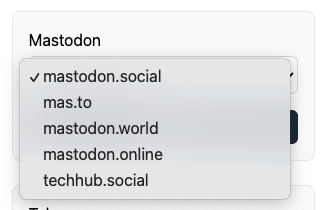
In the Mastodon section on the Manage Profiles screen, select the Mastodon server your account is registered on and then click the Connect button.
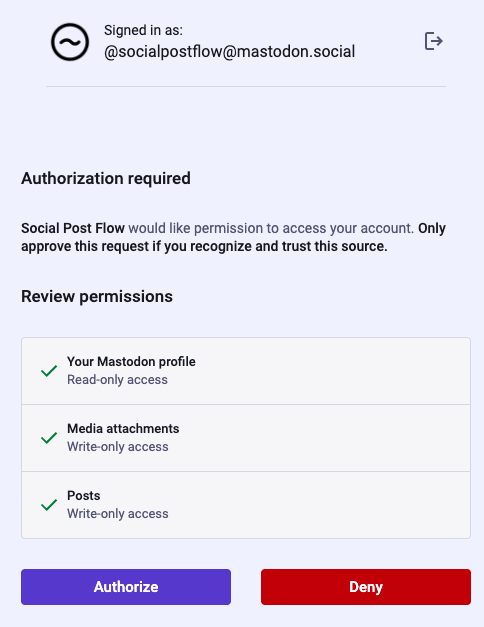
Click Authorize on the screen that appears
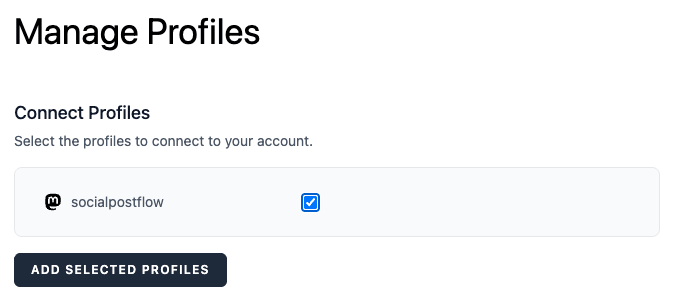
You’ll be redirected back to Social Post Flow, where you can confirm the Mastodon account you wish to connect by ticking the checkbox and clicking Add Selected Profiles
TikTok
Click the Connect button for the TikTok section on the Manage Profiles screen.
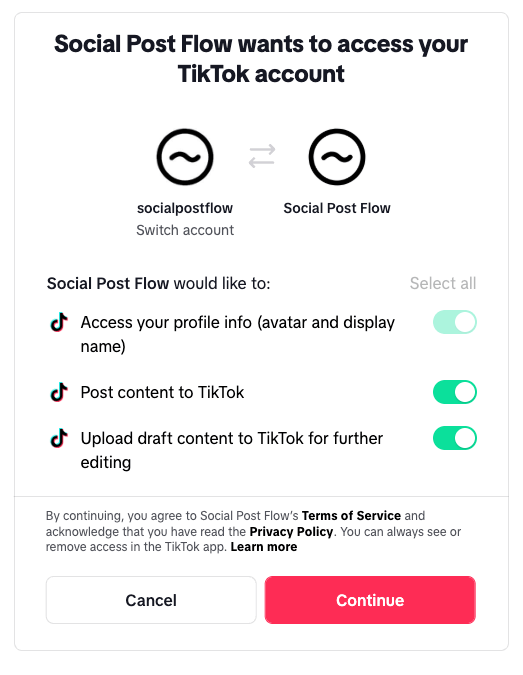
Click Continue on the screen that appears
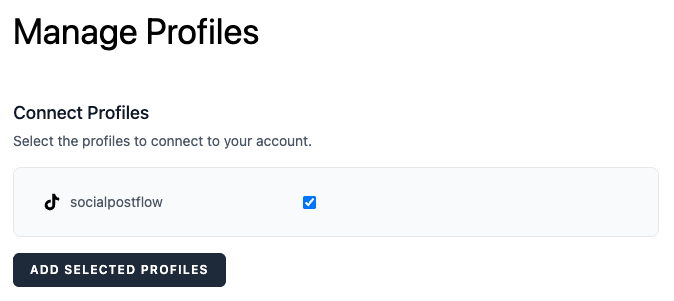
You’ll be redirected back to Social Post Flow, where you can confirm the TikTok account you wish to connect by ticking the checkbox and clicking Add Selected Profiles
Telegram
Telegram requires that you create your own Telegram Bot, which is then granted access to your chosen group(s) and channel(s). Social Post Flow will then use that Bot to post to your groups and channels.
We recommend installing the Telegram Desktop app to register your bot and assign it to your groups and channels. You won’t need the desktop app once you’ve connected the bot to Social Post Flow.
Register Bot
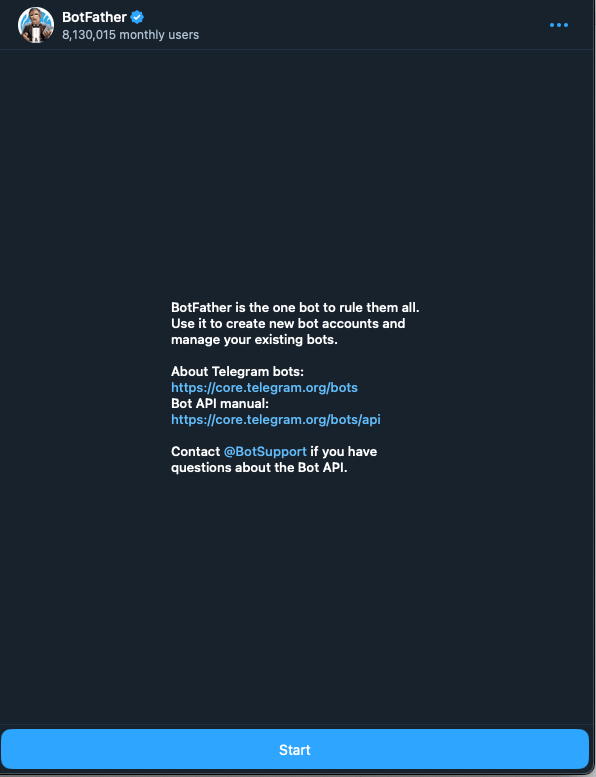
Visit BotFather at https://t.me/BotFather
Click the Start button:
Click the Open button:

Enter a name for your Bot, along with an optional image and about section. Ensure the username ends with bot:
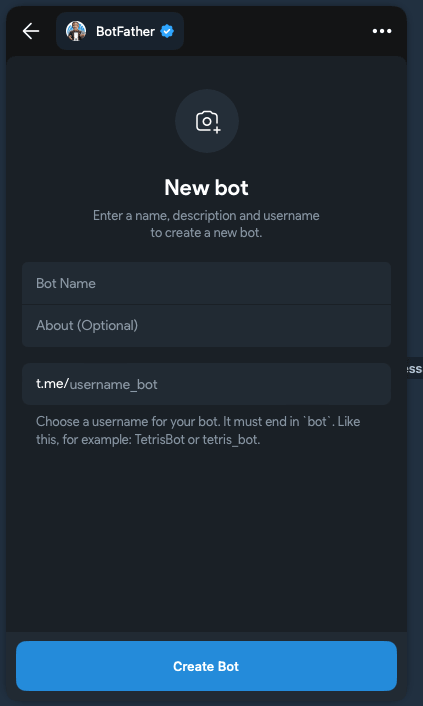
For example, if we were creating a bot for our own business called Social Post Flow:
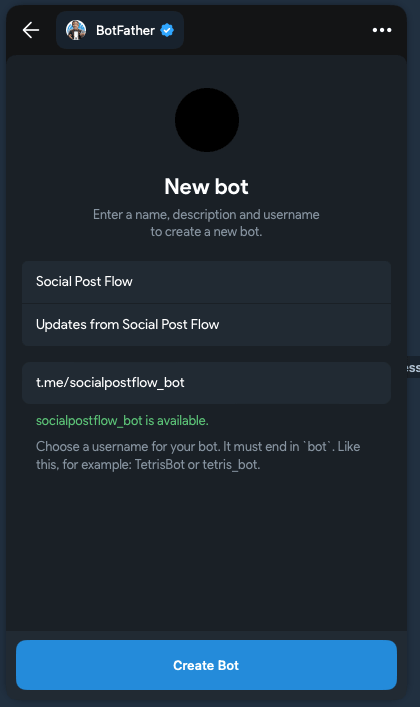
Click Create Bot, and copy the token displayed on screen.
Create your Group or Channel
If you have an existing Group / Channel you want to post to from Social Post Flow, you can move to the next section.
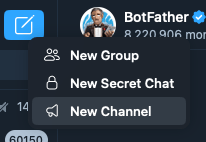
If you haven’t yet created a Telegram Group or Channel, you can do this in the Telegram desktop app by selecting New Group or New Channel:
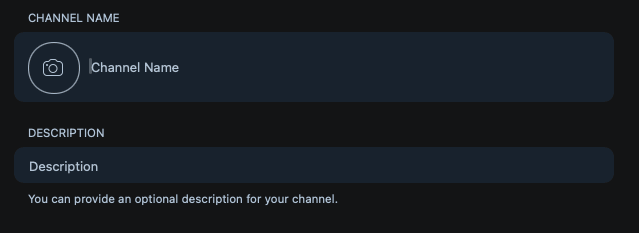
Enter the channel information
Assign Bot to Channel / Group
If you don’t have a Telegram Bot and/or any channels or groups, refer to the above documentation steps first.
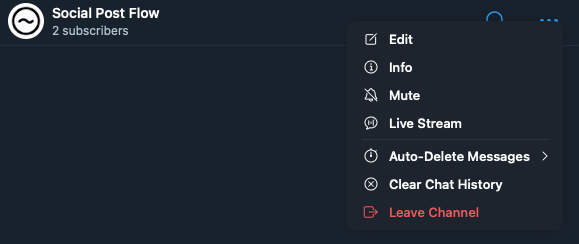
Once created, view the channel and click the 3 dots > Info
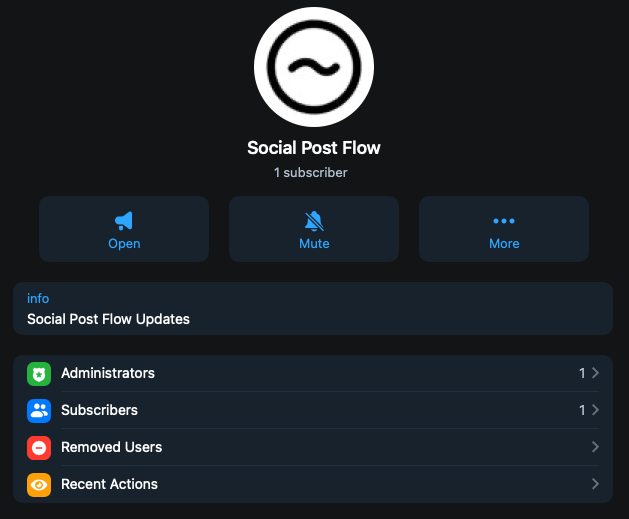
Click Administrators
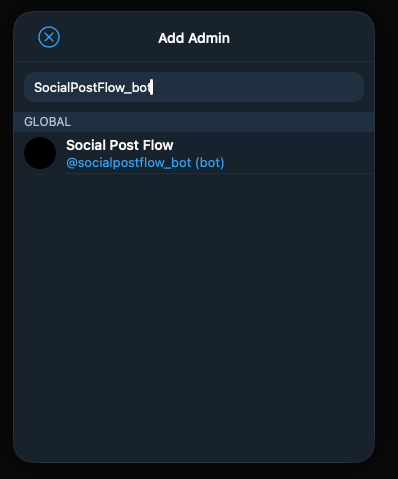
Click Add Admin

Search for your Telegram Bot that you registered in the Register Bot section above, and click the matching name
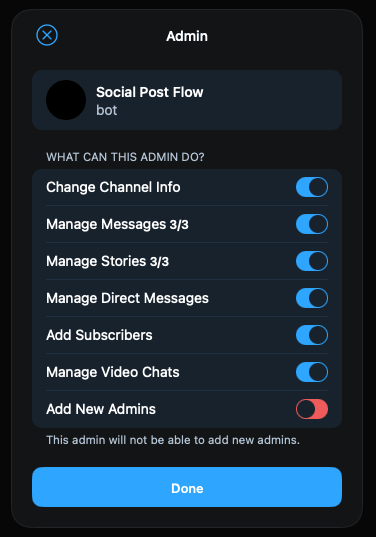
Permit the bot to perform all actions excluding Add New Admins, and click Done
Repeat this process for any other channels and groups you’d like to post to using Social Post Flow.
Connect Telegram to Social Post Flow
Click the Connect button for the Telegram section on the Manage Profiles screen.
On the screen that appears, enter the token you copied from the Register Bot section above
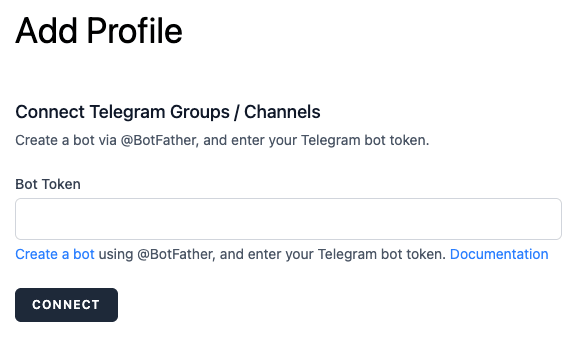
You’ll be redirected back to Social Post Flow, where you can confirm the Telegram Channels and Groups you wish to connect by ticking the applicable checkboxes and clicking Add Selected Profiles
Don’t see the channel or group? You’ll need to add the bot to the channels and groups following the instructions above. If the bot is already assigned to the channels and groups, remove the bot and re-add the bot as an administrator, and reload this screen.
VK
Get Community ID
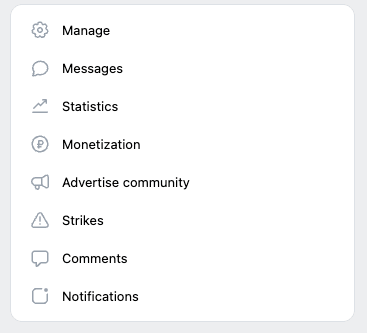
In VK, visit the Community you are an administrator of, and then click Manage on the right hand side
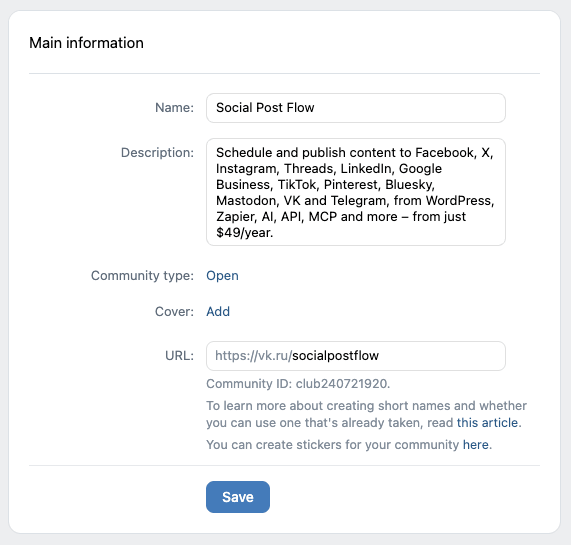
In the Main information section, make a note of the Community ID – in this example, it’s club240721920
Create Access Token
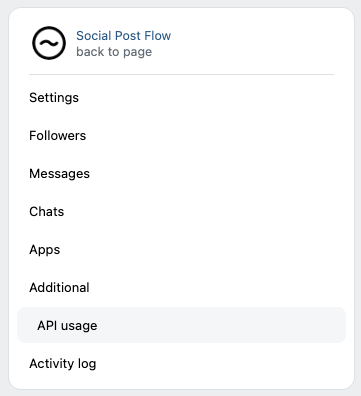
In the right hand menu, click Additional, and then click API usage
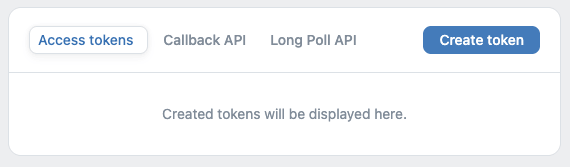
Click the Create token button
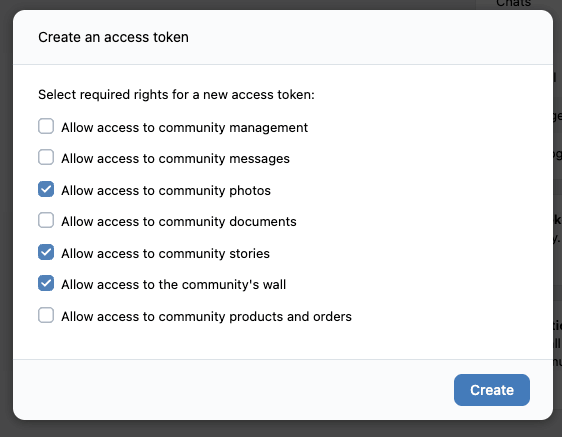
In the modal window that appears, tick/select:
- Allow access to community photos
- Allow access to community stories
- Allow access to the community’s wall
Click Create
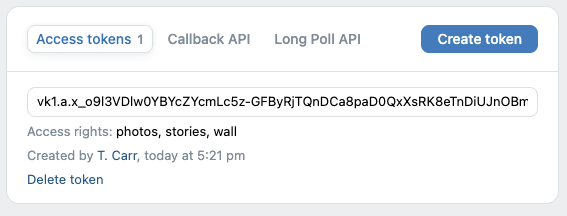
A token/string will be displayed starting with vk1. Click and copy this token.
Connect Community to Social Post Flow
In Social Post Flow, click the Connect button for the VK section on the Manage Profiles screen.
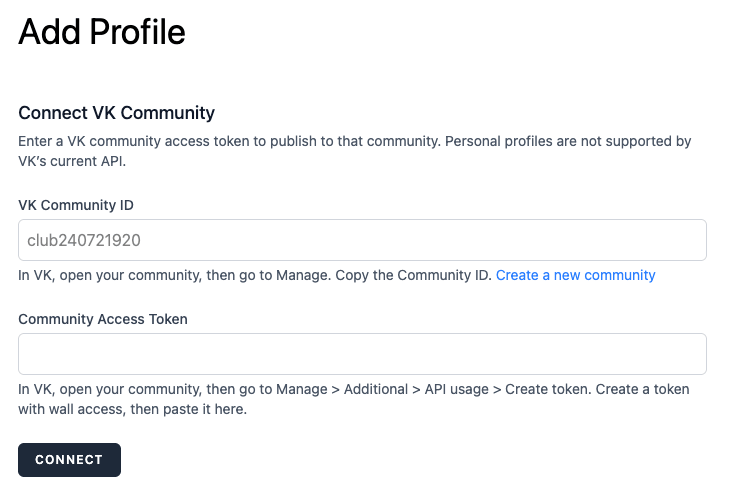
Enter your VK Community ID and Access Token from above, and click Add Profile
You’ll be redirected back to Social Post Flow, where you can confirm the VK Community account you wish to connect by ticking the checkbox and clicking Add Selected Profiles
Buffer
If you’re hitting X link post limits in Social Post Flow, some users connect their X profiles to Buffer, and then connect Social Post Flow to Buffer. Buffer have a generous free plan (3 profiles, no limits on X link posts).
In Buffer, login to the Buffer account you wish to connect to Social Post Flow, and then navigate to https://publish.buffer.com/settings/api?tab=personal-keys
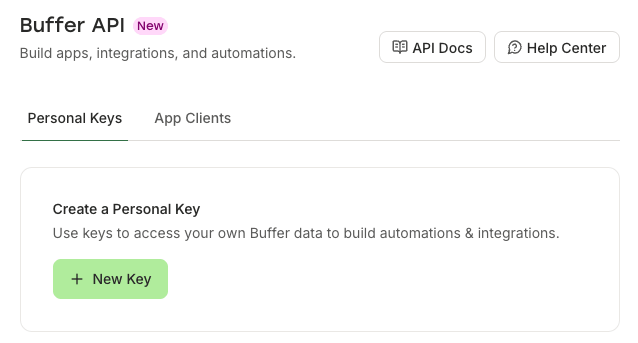
Click New Key, and:
- Enter a Key Name (we’d recommend Social Post Flow, so you know what the key relates to),
- Set an expiration of 1 year
- Permissions: account.read, posts.write. Social Post Flow doesn’t need any other permissions.
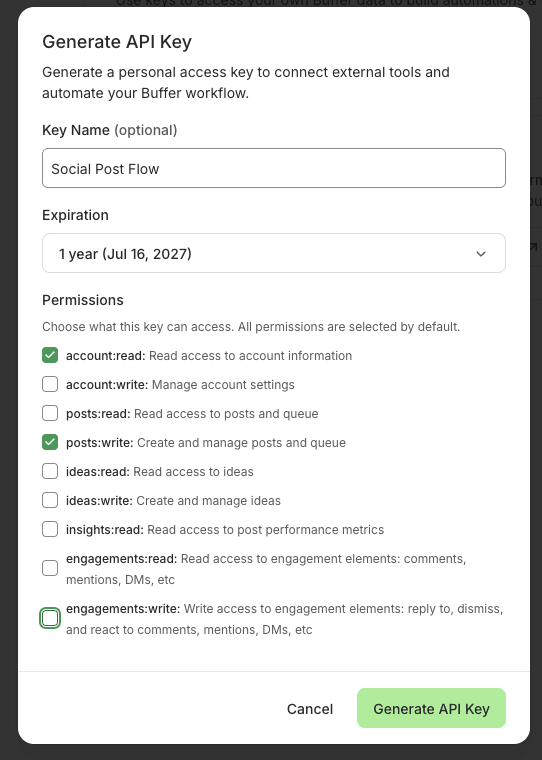
Click Generate API Key, and copy the API Key displayed on screen
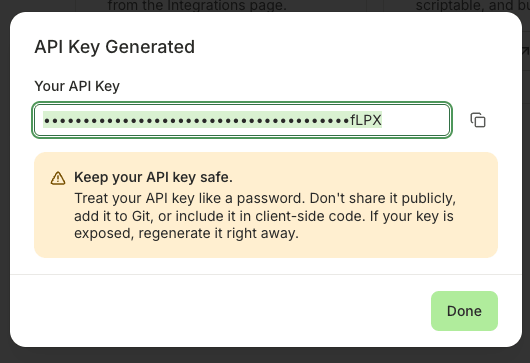
In Social Post Flow, click the Connect button for the Buffer section on the Manage Profiles screen.
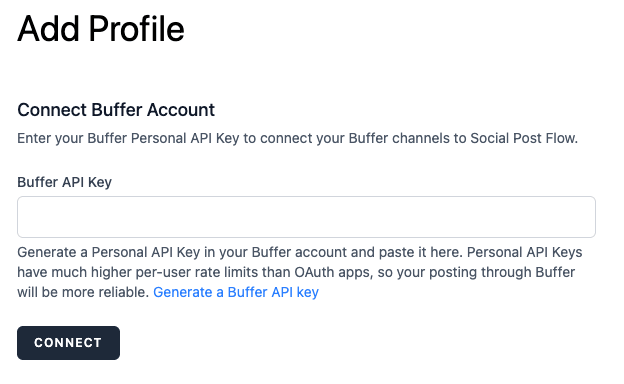
Enter your Buffer API Key, and click Connect
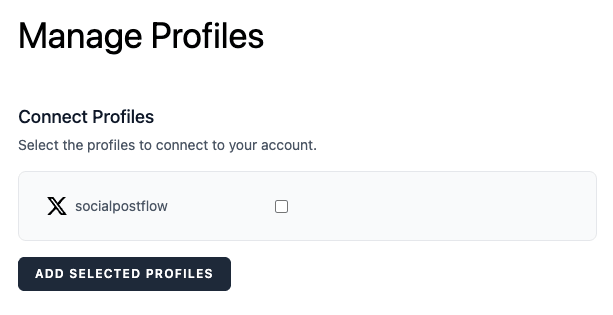
You’ll be redirected back to Social Post Flow, where you can confirm the social media profile(s) connected to Buffer you wish to connect by ticking the checkbox and clicking Add Selected Profiles
At this time, Pinterest, YouTube and Google Business Profiles aren’t supported via Buffer. These are natively supported in Social Post Flow; refer to the documentation above for each to learn how to connect these profiles directly to Social Post Flow.
Functionality
Buffer profiles are distinguished in Social Post Flow with the ‘Buffer: ‘ prefix
Scheduling and functionality is still defined and honored by Social Post Flow or your integration (WordPress, Zapier etc). When a post is due to be published by Social Post Flow, it’ll be sent to Buffer with the share property of shareNow, ensuring Buffer shares it to the social media profile(s) immediately.